
If you followed older tutorials to link Abaqus with Fortran and suddenly nothing works in Abaqus 2025, you are not alone. Many legacy guides rely on outdated Intel compilers or deprecated Visual Studio setups that no longer work with newer Abaqus releases. In this tutorial, I’ll show you the correct and verified way to link Abaqus 2025 with Fortran and Visual Studio, using the compilers and configurations that actually work today. No broken setups, no guessing, just a clean workflow from scratch.
All required download links are provided below, so you don’t need to hunt for hidden installers. Let’s get started.
link abaqus 2025 with fortran
Table of Contents
Understanding Abaqus, Fortran, and Visual Studio Compatibility
Before installing anything, the most important step is understanding version compatibility. Abaqus does not work with every Intel Fortran compiler, and not every compiler integrates correctly with Visual Studio.
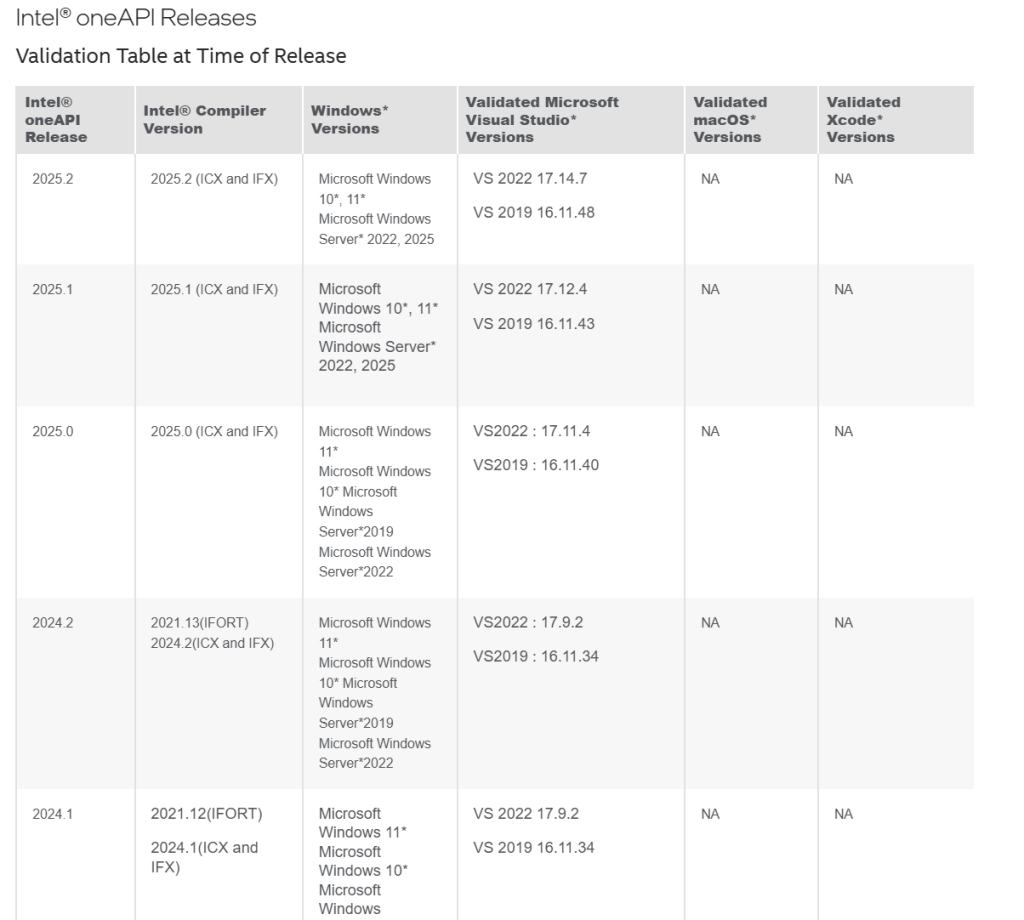
To verify compatibility, go to this website Intel Fortran and Visual Studio Compatibility Table. You’ll see that Intel oneAPI 2024 supports Visual Studio 2022 and 2019, while newer oneAPI 2025 releases no longer link correctly with Abaqus 2025.
This means that if you want Abaqus 2025 subroutines to compile correctly, Intel oneAPI HPC Toolkit 2024 is the version you must use. Older Abaqus versions relied on IFORT, but Abaqus 2025 uses IFX, which is critical to understand.
link abaqus 2025 with fortran
Installing Visual Studio 2022 (Required Step)
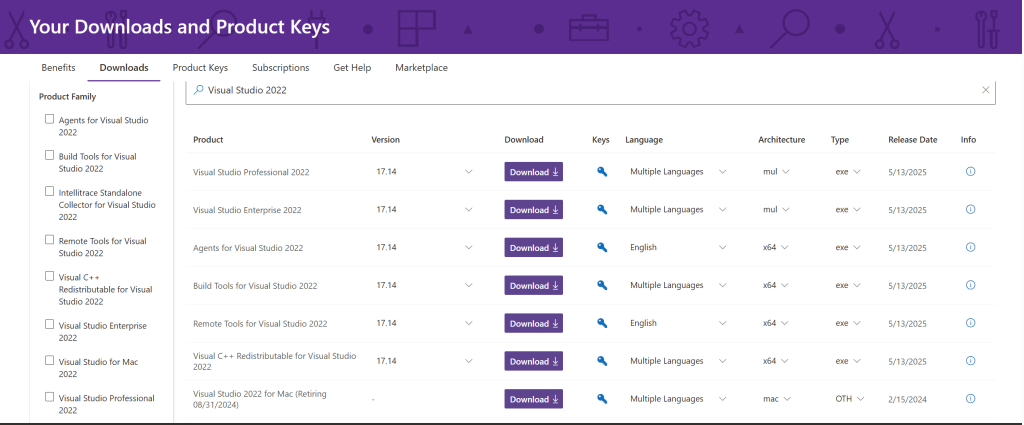
The first installation step is Visual Studio 2022. If you try to download Visual Studio directly, you may only see newer versions. To access Visual Studio 2022, you must go to this website, log in to your Microsoft account, and download it from the “My Visual Studio” section.
During installation, you must enable “Desktop Development with C++”. This workload provides the necessary C++ toolchain required by Intel Fortran and Abaqus. You do not need any additional workloads.
Once installation completes, restart your system before moving on.
link abaqus 2025 with fortran
Downloading Intel oneAPI HPC Toolkit 2024
Next, you need to install the correct Fortran compiler. Searching directly for oneAPI on Intel’s website often redirects you to version 2025, which will not work with Abaqus.
Instead, locate the Intel oneAPI HPC Toolkit 2024 download link (usually shared via Intel Community posts). This is the version that includes the IFX compiler, fully compatible with Abaqus 2025.
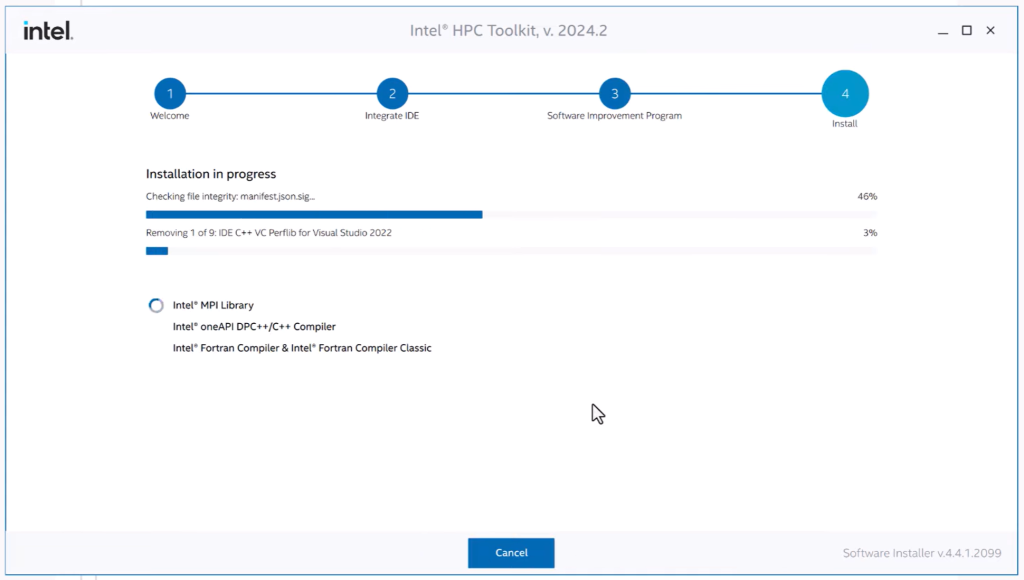
After downloading, extract the installer and proceed with the recommended installation. Make sure Visual Studio 2022 is detected during setup. If it is not, stop and fix Visual Studio before continuing.
Once installation finishes, reboot again.
link abaqus 2025 with fortran
Verifying Fortran Integration in Visual Studio
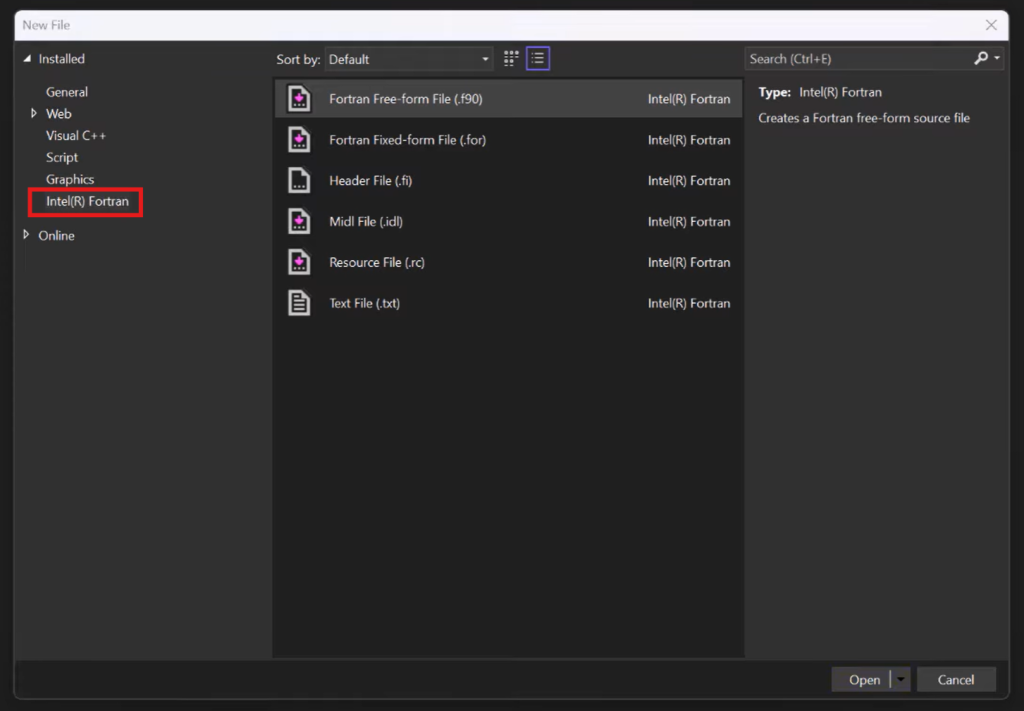
After rebooting, open Visual Studio 2022 and select Continue without code. When creating a new file, check whether Intel Fortran appears as an available file type. If it does not, Visual Studio and oneAPI are not correctly linked.
At this stage, most failures occur due to missing environment variables, which we fix next.
link abaqus 2025 with fortran
Setting Environment Variables (Critical Step)
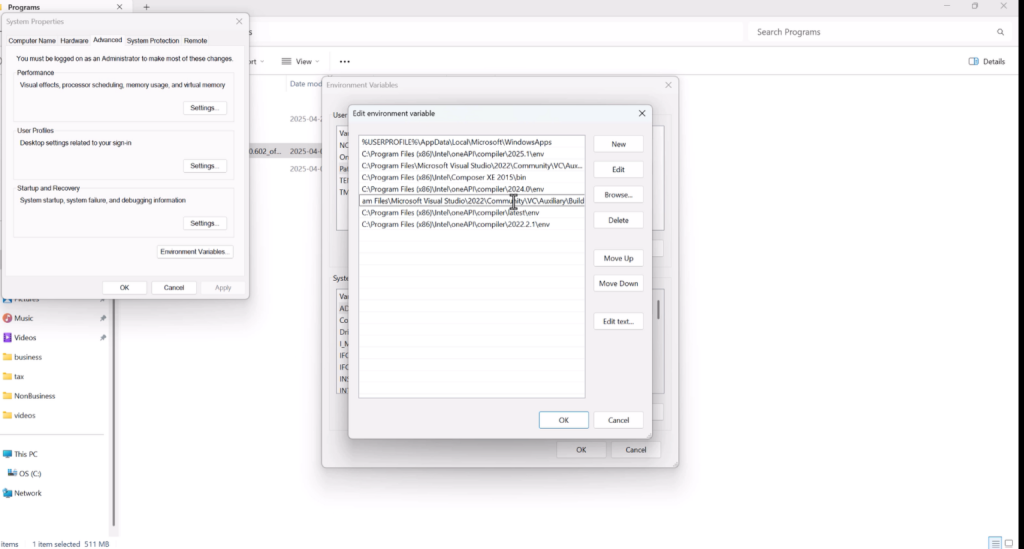
To ensure Abaqus can find both Visual Studio and the Intel Fortran compiler, you must manually update system environment variables.
First, locate the Visual Studio build tools directory and add it to your system PATH. Then, locate the Intel oneAPI compiler environment directory and add that path as well.
These paths allow Abaqus to locate the compiler during subroutine compilation. Without them, Abaqus will fail silently or throw misleading errors.
After updating PATH variables, restart your system one final time.
link abaqus 2025 with fortran
Changing Abaqus Command Batch Files
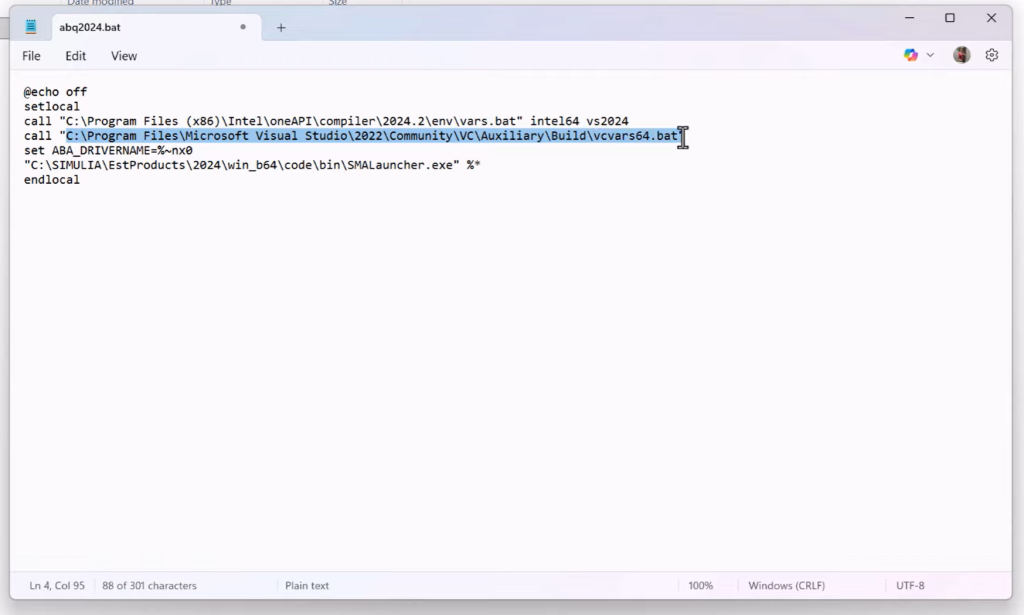
Navigate to the Abaqus command batch file location:
C:\SIMULIA\Commands\abq2025.batCreate a backup of this file before editing.
Using a text editor, after @echo off and setlocal, insert the following:
call "C:\Program Files (x86)\Intel\oneAPI\compiler\latest\env\vars.bat" intel64 vs2024
call "C:\Program Files\Microsoft Visual Studio\2022\Community\VC\Auxiliary\Build\vcvars64.bat"
Save the modified file.
This ensures that Abaqus will correctly initialize the compilers upon command window launch.
link abaqus 2025 with fortran
Updating Abaqus CAE and Command Shortcut Targets
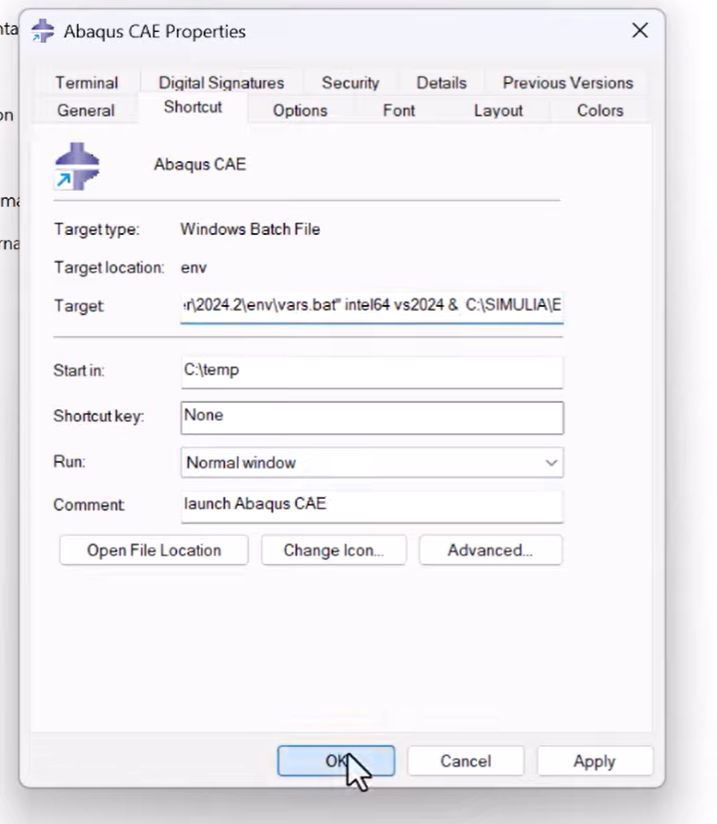
To complete environment preparation:
- Locate the Abaqus CAE and Abaqus Command shortcuts. link abaqus 2025 with fortran
- Right-click each shortcut → select Properties.
- In the Target field, prepend:
"C:\Program Files (x86)\Intel\oneAPI\compiler\latest\env\vars.bat" intel64 vs2024 &&Apply and close. link abaqus 2025 with fortran
This adjustment ensures shortcut launches correctly initialize the environment before Abaqus starts.
Verifying the Abaqus, Visual Studio, and Fortran Link
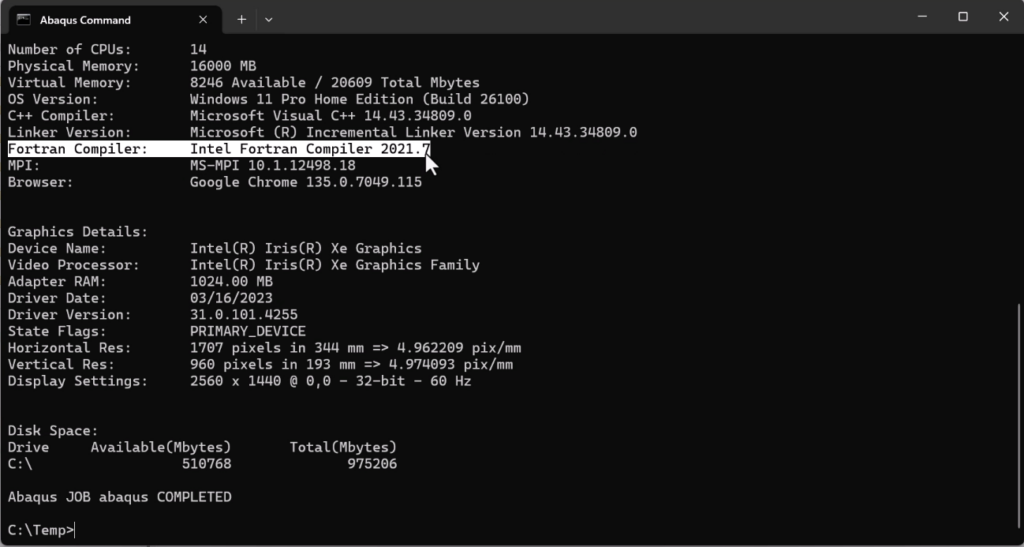
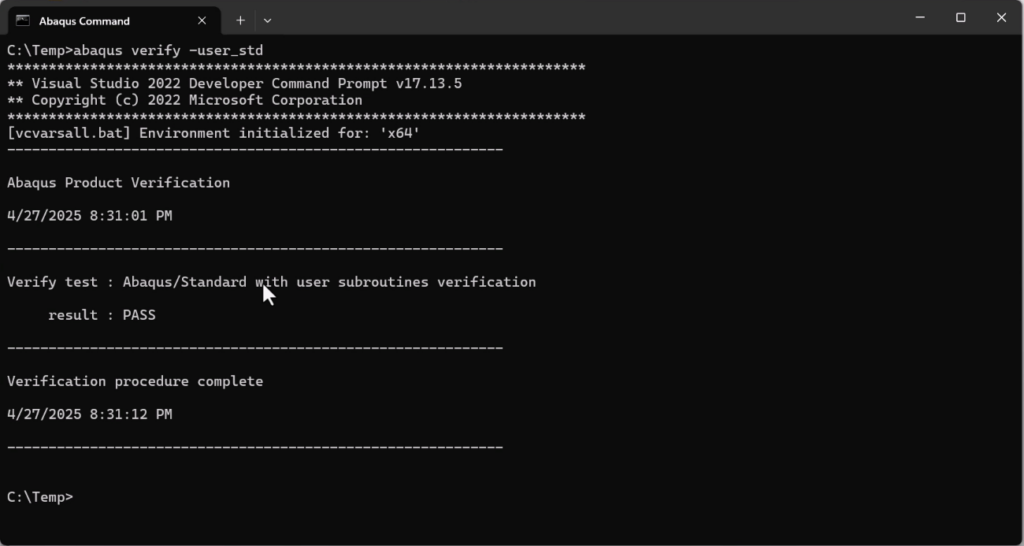
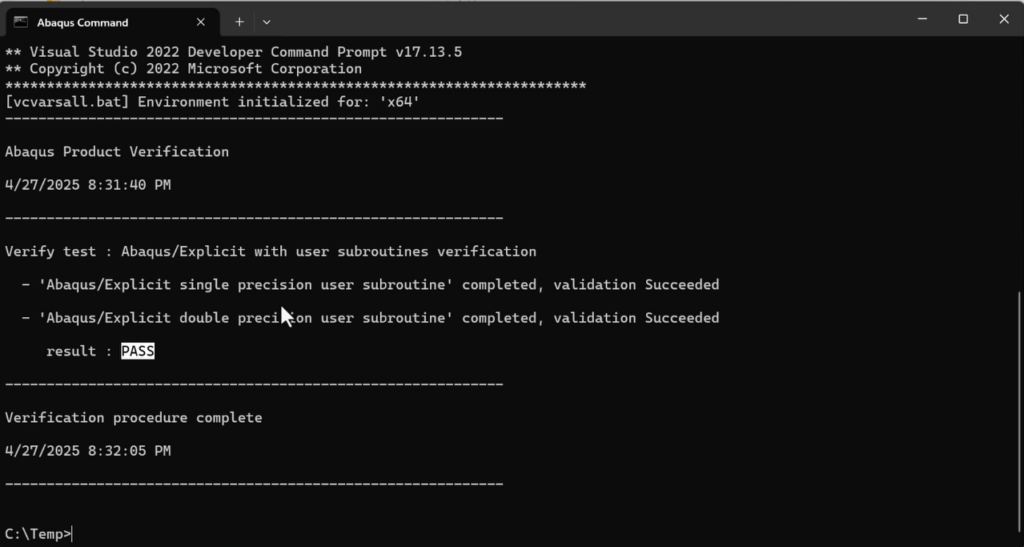
Run the following commands inside Abaqus Command to confirm successful configuration:
- To verify environment information: bashCopyEdit
abaqus info=system - To test subroutine linking with Standard solver: bashCopyEdit
abaqus verify -user_std - To test subroutine linking with Explicit solver: bashCopyEdit
abaqus verify -user_exp
Successful results will show PASS confirmations, indicating correct linking and environment setup. link abaqus 2025 with fortran
Handling ifort/ifx Transition Issues (Optional Adjustment)
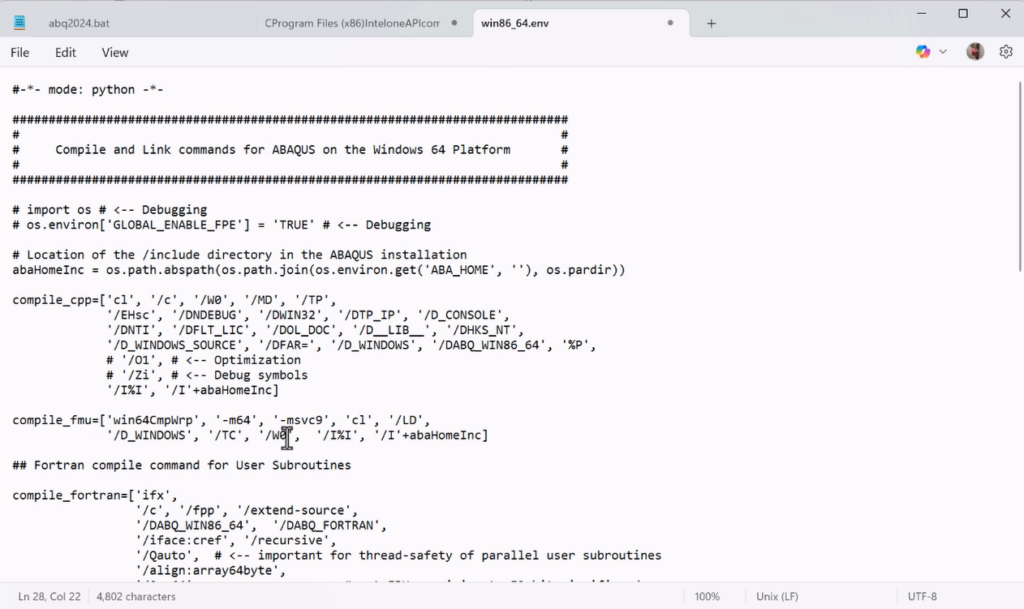
If you encounter “ifort not found” errors during verification:
- Go to:
C:\SIMULIA\EstProducts\2024\win_b64\SMA\site - Open
win86-64.envin a text editor. - Replace all instances of
ifortwithifx. link abaqus 2025 with fortran - Save and close.
This aligns the Abaqus environment with the new naming conventions of the Intel compiler (ifx instead of ifort).
Final Notes and Next Steps
At this point, Abaqus 2025 is fully linked with Fortran and Visual Studio, and you are ready to compile user subroutines without errors. This setup works for both Standard and Explicit analyses and is suitable for advanced workflows involving DFLUX, UMAT, VUMAT, and other user routines. link abaqus 2025 with fortran
If you want to skip setup and get working files instantly, check the links provided. And if this guide helped you, consider leaving a comment—it genuinely helps more than you think. link abaqus 2025 with fortran
Next up, it’s time to write your first Abaqus subroutine. Check this post for DLOAD subroutine.
