
If you’ve been trying to install Abaqus 2026 Learning Edition and nothing seems to work, you’re not alone. Many users run into issues finding the correct download page, removing older versions, or configuring the required Java installation. This Abaqus 2026 installation guide walks you through the entire process from downloading the software to launching Abaqus/CAE successfully.
👉 Watch the full video tutorial below and follow along step by step. The video covers every click, making the Abaqus 2026 Learning Edition installation process simple even if you’ve never installed simulation software before. Abaqus 2026 Learning Edition
Table of Contents
Why Use Abaqus 2026 Learning Edition?
The Abaqus 2026 Learning Edition is the official free version of Abaqus provided for educational and personal learning purposes. It allows students and beginners to become familiar with one of the most widely used finite element analysis (FEA) software packages in industry and academia. Abaqus 2026 Learning Edition
With Abaqus Learning Edition 2026, you can:
- Learn the Abaqus interface.
- Create and mesh 3D models.
- Perform structural and thermal simulations.
- Practice contact, plasticity, and many standard FEA workflows.
- Prepare for research projects or engineering careers.
If you’re just starting with finite element analysis, the Abaqus 2026 Learning Edition is one of the best free tools available.
Step 1: Download Abaqus 2026 Learning Edition
The first step is downloading the correct installation package.
Open your browser and search for:
“Abaqus 2026 Learning Edition”
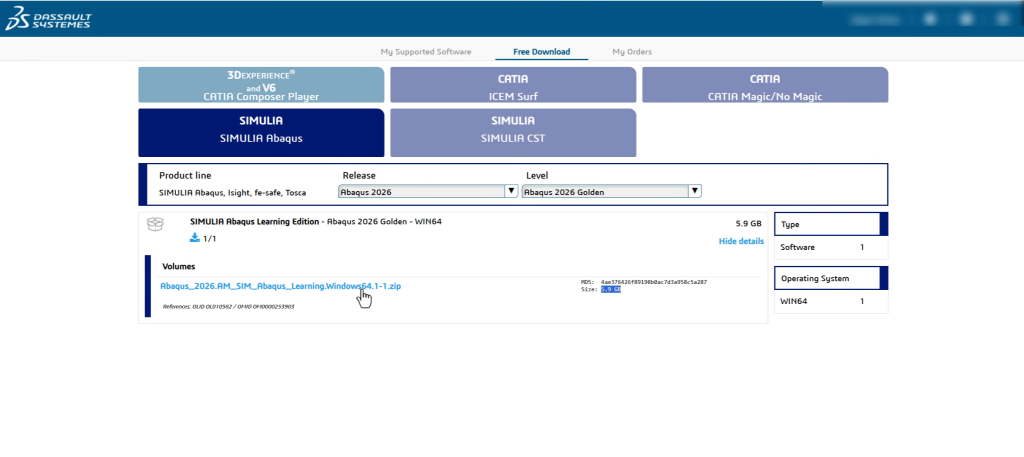
You should find the official 3DEXPERIENCE / Dassault Systèmes page that provides access to the learning edition. After logging into your account, navigate to the downloads section and select:
SIMULIA Abaqus Learning Edition 2026
On the download page, you will see several versions available, including 2024, 2025, and 2026. Make sure you choose the latest Abaqus 2026 Learning Edition package.Abaqus 2026 Learning Edition
The installer is approximately 6 GB, so a stable internet connection is recommended. Create a dedicated folder on your computer (for example, Abaqus_Learning_Edition_2026) and save the downloaded ZIP file there.
Step 2: Remove Previous Abaqus Versions
If you already have an older version installed, it is a good idea to uninstall it before proceeding with the new installation.
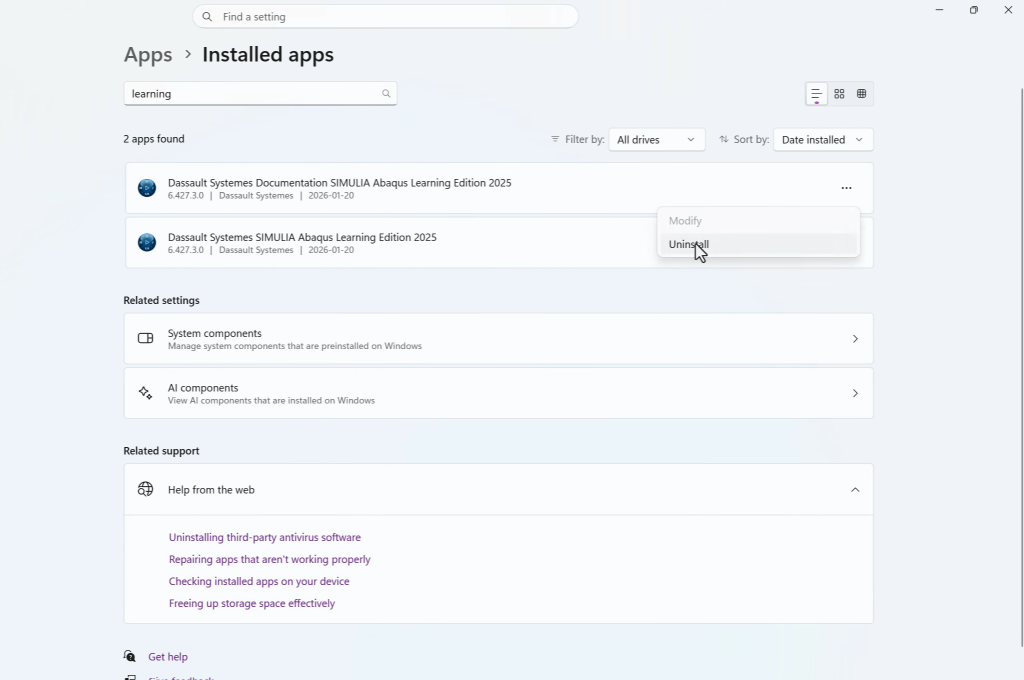
Open Windows Settings and navigate to:
Apps → Installed Apps (or Add or Remove Programs)
Search for Learning Edition and uninstall:
- Abaqus 2025 Learning Edition.
- Abaqus 2025 Learning Edition Documentation. Abaqus 2026 Learning Edition
Once the documentation is removed, uninstall the main Abaqus Learning Edition package as well.
After the uninstall process is complete, restart your computer before continuing with the new installation. A clean restart helps avoid conflicts during the installation of Abaqus 2026.
Step 3: Extract the Installation Files
After the download finishes, you need to extract the installation package before running the setup.
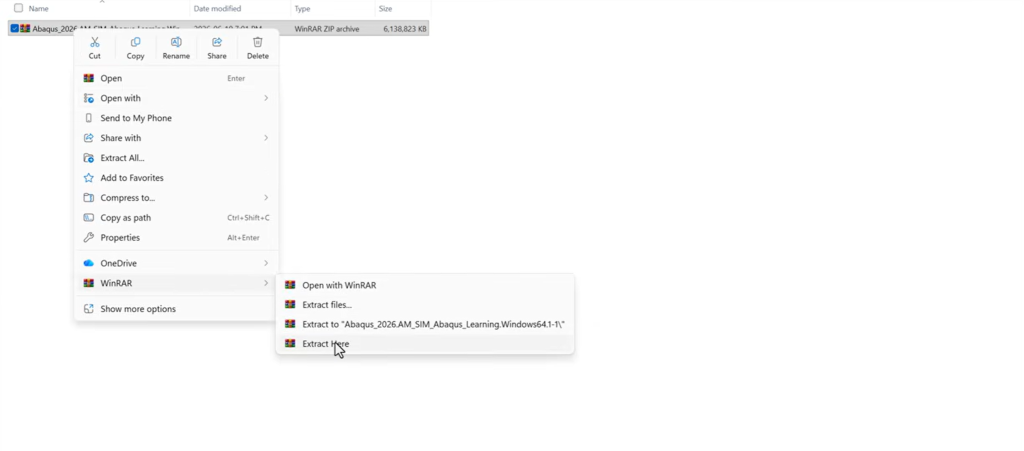
If you use WinRAR, simply:
- Right-click the downloaded ZIP file.
- Select Extract Here. Abaqus 2026 Learning Edition
If you do not have WinRAR installed, Windows can do the job:
- Right-click the ZIP file.
- Select Extract All.
- Choose a destination folder.
- Click Extract.
⚠️ Important: Do not try to install Abaqus directly from the compressed ZIP archive. Always extract the files first.
Extraction may take several minutes depending on your storage drive and CPU speed.
Step 4: Install Java (Required)
One of the most common issues users face during the Abaqus 2026 installation is the Java requirement.
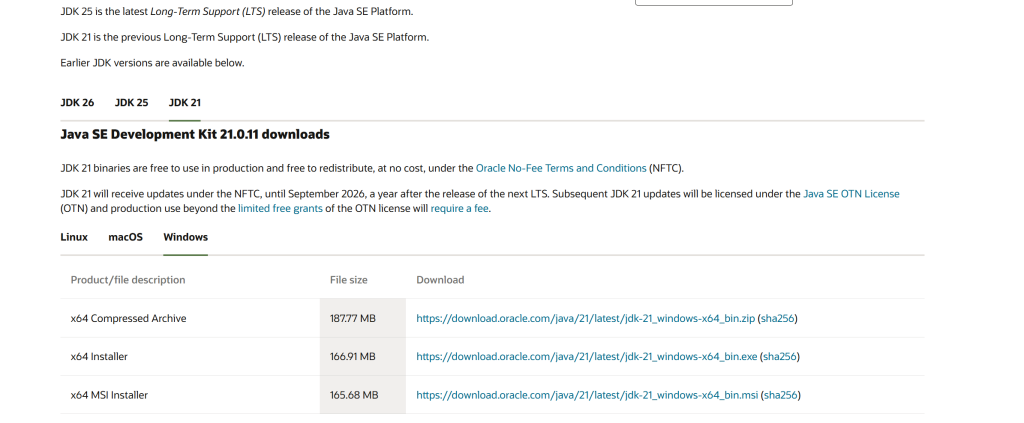
When you launch the installer, you may be prompted to specify a Java installation directory. If Java is not already installed on your computer, simply download the latest 64-bit Java Development Kit (JDK) for Windows.
After downloading:
- Right-click the Java installer.
- Choose Run as administrator.
- Click Next and complete the installation. Abaqus 2026 Learning Edition
Once installed, locate the Java directory, which is typically found at:
C:\Program Files\Java\
Inside this folder, you should see a directory similar to:jdk-21
Copy this path because you’ll need to provide it during the Abaqus installation.
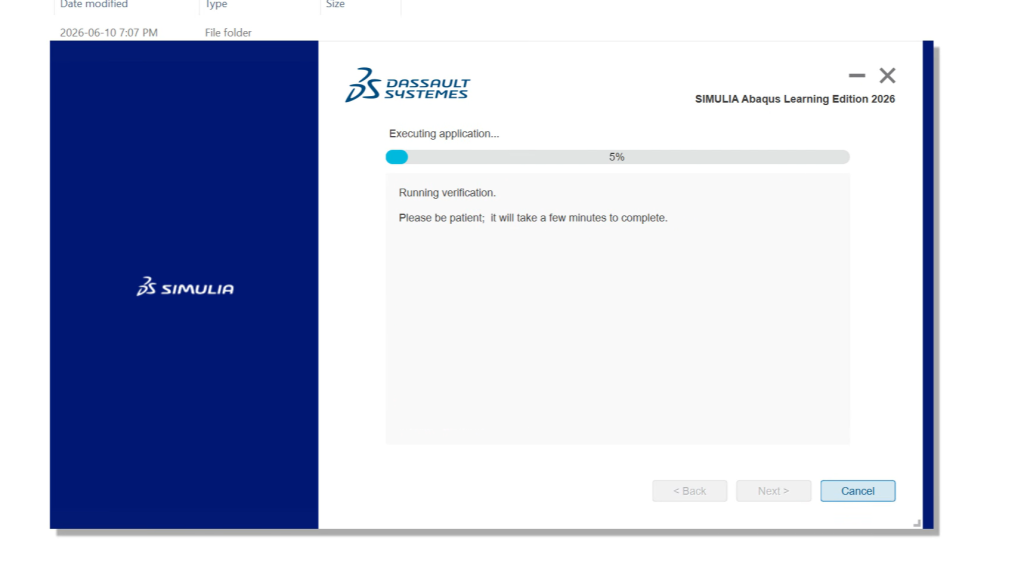
Step 5: Install Abaqus 2026 Learning Edition
Now it’s time to install the software.
Open the extracted installation folder and locate the setup application. Right-click it and choose:
Run as administrator
When the installation wizard opens:
- Click Next.
- Accept the license agreement. Abaqus 2026 Learning Edition
- When prompted, browse to the Java installation folder you installed earlier.
- Continue through the installation wizard.
- Click Install and wait for the process to complete.
Depending on your hardware, the installation may take several minutes. Abaqus 2026 Learning Edition
Once the installer reports that the process is finished, the Abaqus 2026 Learning Edition has been successfully installed.
Step 6: Launch Abaqus/CAE 2026
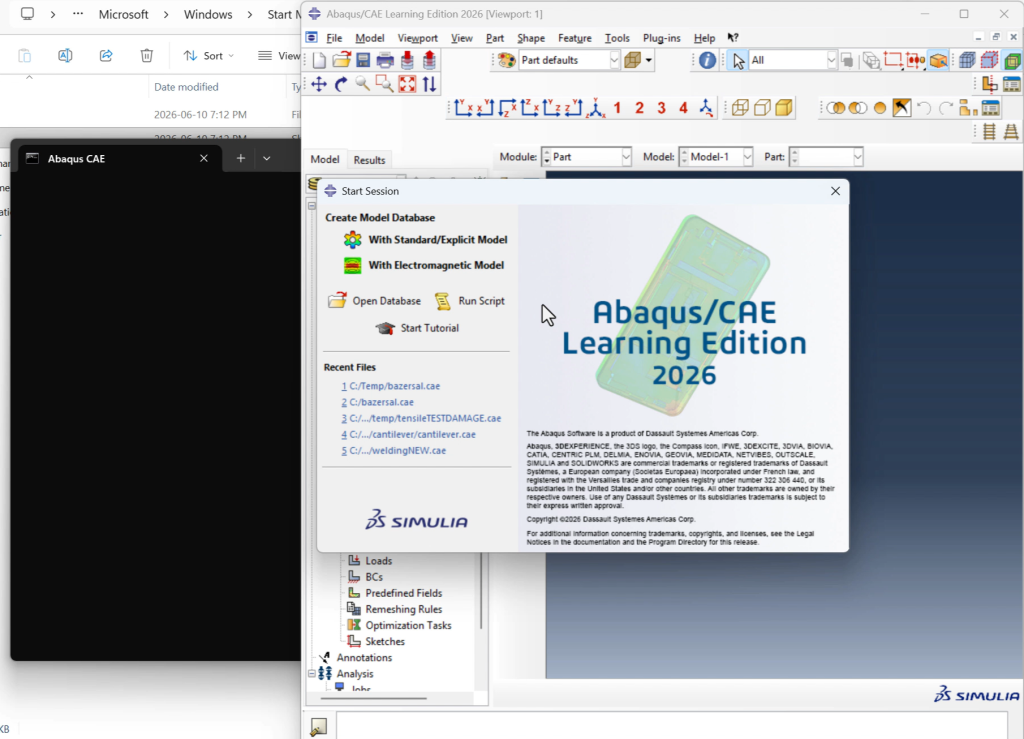
To verify that everything is working correctly, open the Windows search bar and type:
Abaqus CAE
If you have multiple Abaqus versions installed, you can right-click the application and choose Open File Location to confirm that you are launching the Abaqus Learning Edition 2026 executable. Abaqus 2026 Learning Edition
Double-click the shortcut, and after a few moments, the Abaqus/CAE interface should appear.
🎉 Congratulations! You have successfully completed the Abaqus 2026 Learning Edition installation and are ready to start building your first finite element model.
Abaqus Learning Edition Limitations
Before you start your projects, it is important to understand the limitations of the free version.
The Abaqus 2026 Learning Edition is free to use, but it includes several restrictions compared to the commercial license:
- Maximum model size limited to approximately 1,000 nodes.
- User subroutines (UMAT, DFLUX, VUMAT, etc.) are not supported.
- Parallel processing and multi-core solving are unavailable.
- Intended for learning and educational purposes only.
Despite these limitations, the Learning Edition is more than capable of teaching you the Abaqus interface and fundamental FEA concepts.
Final Thoughts
Installing Abaqus 2026 Learning Edition does not have to be complicated. By following the correct process—downloading the official installer, removing older versions, extracting the files, installing Java, and running the setup as administrator—you can avoid the most common installation problems.
In this guide, we covered:
- How to download Abaqus 2026 Learning Edition.
- How to uninstall previous versions.
- How to extract and install the software correctly.
- How to install and configure Java.
- How to launch and verify that Abaqus/CAE 2026 is working properly.
If this guide helped you, make sure to watch the full YouTube tutorial and consider sharing it with classmates or colleagues who are trying to install Abaqus for the first time.
Related Tutorials
- How to Download & Install ANSYS Student 2026
- How to Link Abaqus 2025 with Intel Fortran and Visual Studio
- Best Laptop for Abaqus and Finite Element Analysis
If you’re looking for more Abaqus tutorials, finite element modeling guides, and simulation tips, explore the rest of the articles here on FEA Master.
