
🎓 ANSYS Student 2026 Installation Made Simple
If you’re struggling with ANSYS Student 2026 installation or can’t find a guide that actually works, you’re in the right place.
In this complete ANSYS Student 2026 installation guide, you’ll learn exactly how to download ANSYS Student 2026, uninstall old versions, and install everything correctly — step by step, with no confusion, no errors, and no unnecessary steps. Whether you’re new to finite element analysis (FEA) or switching from Abaqus or SolidWorks, by the end of this tutorial, your ANSYS Student 2026 installation will be complete and ready for your first simulation.
👉 Watch the full ANSYS Student 2026 installation video here to follow along visually:
Table of Contents
🔽 Step 1: Download ANSYS Student 2026 R1
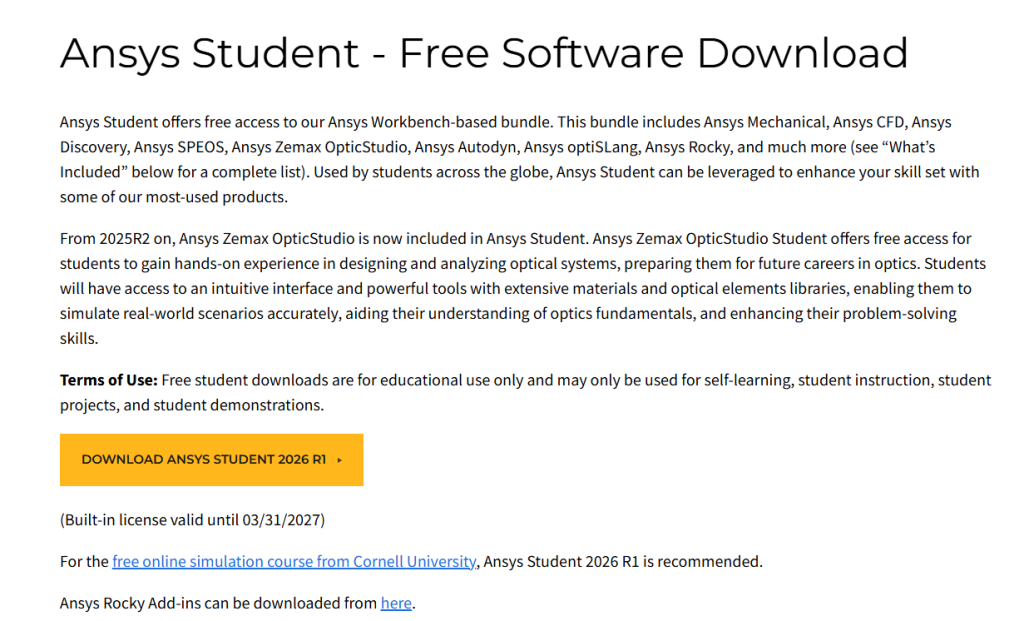
The first step in any ANSYS Student 2026 installation is downloading the correct version.
First go to this website. Then go to the official ANSYS student page and select:
👉 Download ANSYS Student 2026 R1
Make sure you save the file in a location where you can easily find it later. The ANSYS Student 2026 download is large, so depending on your internet speed, it may take some time.
A stable connection is important to avoid corrupted downloads during the ANSYS Student 2026 installation process.
⚠️ Step 2: Uninstall Previous ANSYS Versions (Critical Step)
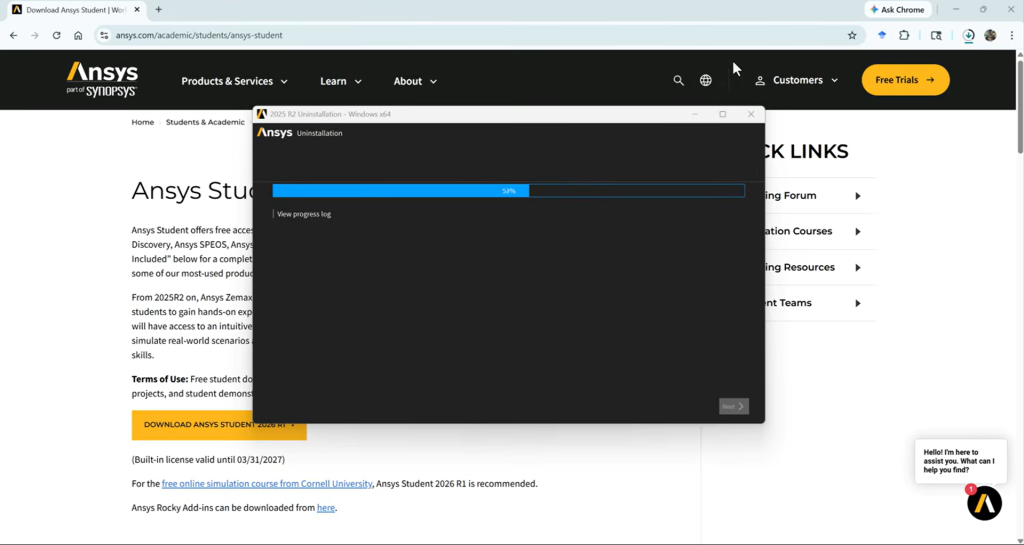
Before starting the ANSYS Student 2026 installation, you must remove older versions like ANSYS 2025.
If you skip this step, you may encounter:
- Installation conflicts
- Detection errors
- Broken Workbench
To uninstall properly, search for Workbench 2025 R2 on your system, open its file location, and run the uninstall executable.
The uninstall process typically takes around 5 to 10 minutes. Once completed, restart your computer before continuing the ANSYS Student 2026 installation.
🗜 Step 3: Extract the ANSYS Student 2026 Files
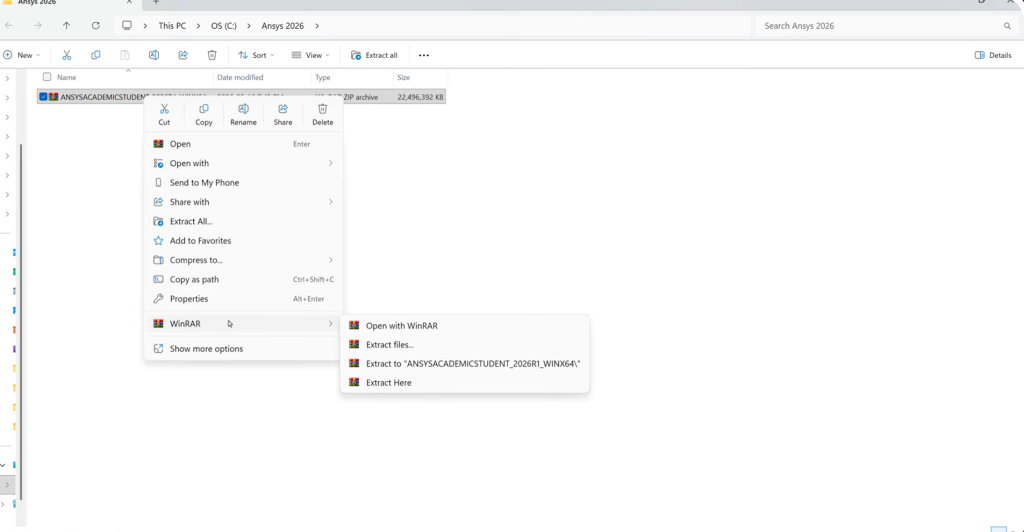
After completing the ANSYS Student 2026 download, do NOT run the installer immediately.
You must extract the files first.
If you try to install ANSYS without extracting, you will likely get this error:
“Unable to detect installed product”
To avoid this during your ANSYS Student 2026 installation:
Right-click the downloaded file and choose Extract All, or use software like WinRAR. Wait until the extraction process is fully completed before moving on.
This is one of the most important steps in a successful ANSYS Student 2026 installation.
⚙️ Step 4: Install ANSYS Student 2026 Correctly
Once the files are extracted, locate the setup file.
Right-click and select:
Run as Administrator
This ensures the ANSYS Student 2026 installation proceeds without permission issues.
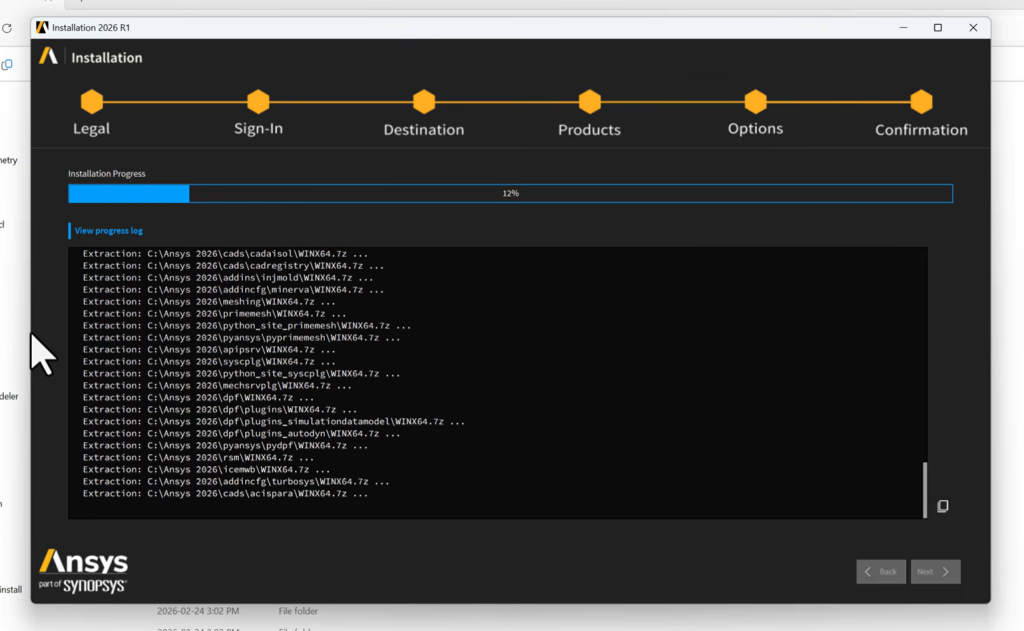
Accept the license agreement, keep the default installation directory, and continue with the installation.
The installation process may take around 20 to 30 minutes depending on your system performance.
✅ Step 5: Launch ANSYS Workbench 2026 R1
After completing the ANSYS Student 2026 installation, search for:
Workbench 2026 R1
If it does not appear, navigate manually to:
C → Program Files → ANSYS Inc → ANSYS Student → v261 → Framework → bin → Win64
Then launch:
runwb2.exe
If everything was done correctly, ANSYS Workbench 2026 should open without any errors.
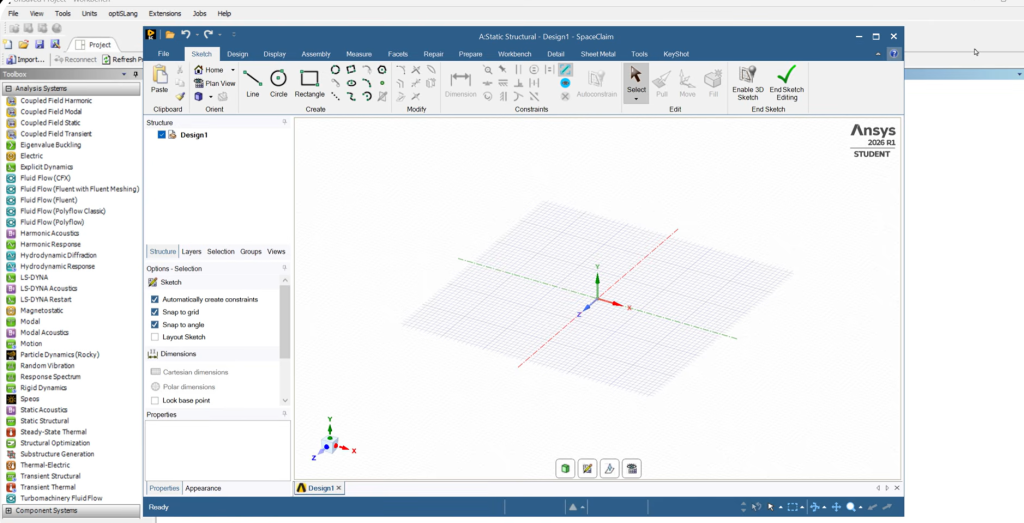
🧪 Step 6: Configure Geometry Settings in ANSYS 2026
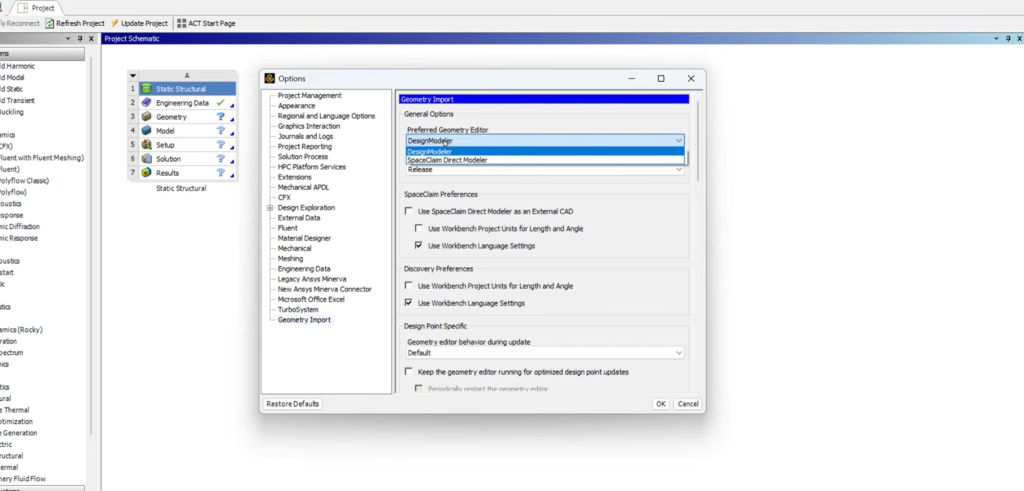
After launching ANSYS, it is recommended to configure your geometry editor.
Go to:
Tools → Options → Geometry Import
Set your preferred geometry editor to SpaceClaim instead of DesignModeler.
This step ensures your ANSYS Student 2026 installation is fully optimized and ready for modern simulation workflows.
🚀 ANSYS Student 2026 Installation Complete
At this point, your ANSYS Student 2026 installation is complete.
You now have:
- ANSYS Workbench fully installed
- Geometry tools ready
- Simulation environment working correctly
You are now ready to run your first simulation using ANSYS Student 2026.
🧠 Why Use ANSYS Student 2026?
The ANSYS Student version is one of the best free tools available for learning simulation.
With ANSYS Student 2026, you can:
- Perform structural analysis
- Run thermal simulations
- Learn professional FEA workflows
- Prepare for engineering careers
Whether you’re a student, researcher, or engineer, mastering ANSYS Student 2026 installation and usage is a valuable skill.
📌 Final Thoughts
This ANSYS Student 2026 installation guide showed you:
- How to download ANSYS Student 2026
- How to remove older versions correctly
- How to install ANSYS without errors
- How to launch and configure Workbench
If you follow these steps carefully, your ANSYS Student 2026 installation should work perfectly without any issues.
🎥 Don’t Miss the Full Video
If you want to see the entire process in action and avoid mistakes, make sure to watch the full video above.
And if this guide helped you, check out more tutorials on Abaqus, ANSYS, and FEA simulations to level up your skills.
📺 Related Tutorial:
If you’re also using Origin, check this:
👉 Download OriginPro 2026
