
MSC Patran Nastran 2025 Installation can feel confusing when every link online is outdated or hidden behind long registration steps. In this guide, I’ll walk you through the full process of downloading and installing MSC Patran and MSC Nastran 2025 Student Edition for free, using the official Hexagon student licensing portal. By the end of this walkthrough, your software will be fully installed, activated, and ready to run your first simulation. MSC Patran Nastran 2025 Installation
Before we begin, if you want to skip the tutorial and watch the full video version, you can find it embedded below. And if you prefer downloading the required files without reading the whole guide, look at the first link in the video description. MSC Patran Nastran 2025 Installation
MSC Patran Nastran 2025 Installation — Complete Student Edition Correct Guide
MSC Patran Nastran 2025 Installation made easy. Learn how to download, register, and install MSC Patran and Nastran 2025 Student Edition step by step without errors.
Table of Contents
What You Need Before Installation
To access the free student edition, Hexagon requires proof that you are currently enrolled as a student. This means you will need a valid student ID card and a personal ID card for verification. The system checks that your name matches on both. Using a university email address increases the chance of instant approval and reduces delays from the verification team. Once registered, your student account gives you access to multiple MSC tools including Patran, Nastran, Marc, Apex, and more. MSC Patran Nastran 2025 Installation
MSC Patran Nastran 2025 Installation
How to Register for the Student Edition
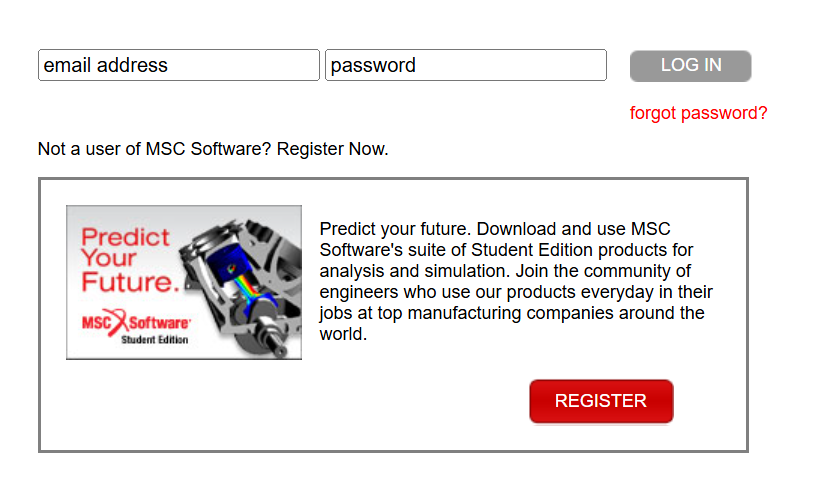
The process begins with searching for the MSC student download page. Go to this website. Once there, you’ll see a list of the available software packages. Before downloading anything, the system asks you to sign in. If you don’t already have an account, you must click “Register” and complete the form. The form asks for your full name, email, university name, academic program, and expected graduation date. It also asks you to upload a “collaged” image containing your university student ID and your personal ID in a single picture. MSC Patran Nastran 2025 Installation
MSC Patran Nastran 2025 Installation
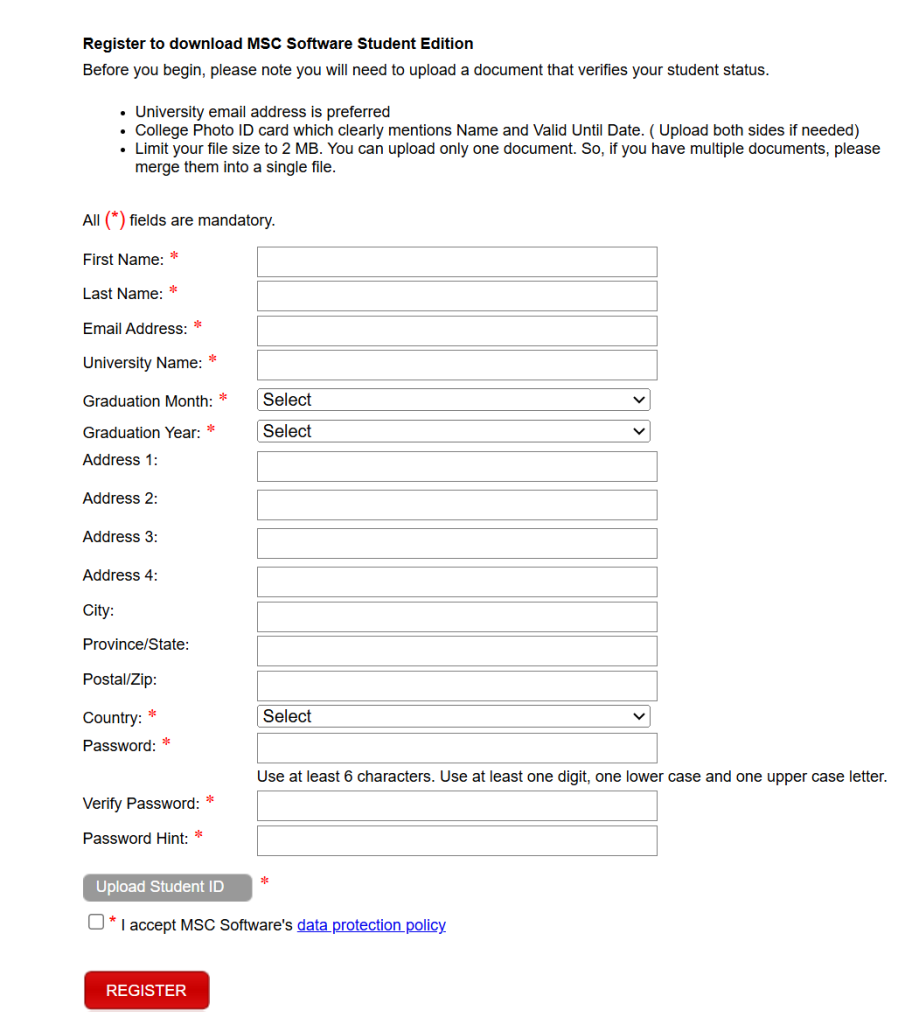
Many users struggle with creating this image, so the easiest method is to open PowerPoint and place both IDs on a blank slide. After arranging them neatly, export the slide as a JPG image. If the file size is too big, you can compress it using any free online compression tool like reduceimages.com. Once this file is ready, upload it to the registration form and click “Register.” MSC Patran Nastran 2025 Installation
Receiving the Approval Email
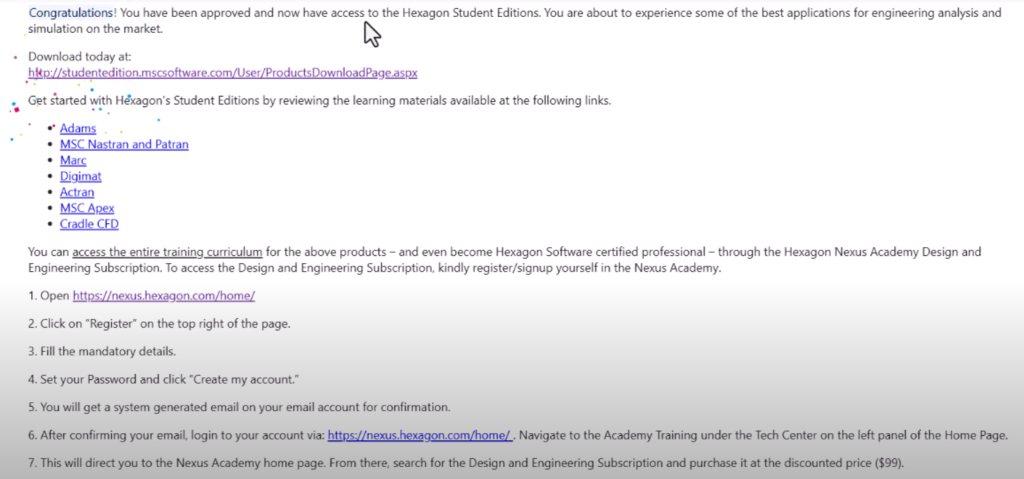
Hexagon typically sends an approval email within a few minutes, but depending on the time of day it may take a couple of hours. The email confirms that your account has been verified and that you now have access to the student edition downloads. Only after this approval will the download links on the student portal become active. MSC Patran Nastran 2025 Installation
If your image wasn’t clear or the IDs didn’t match, the system may reject your registration. In such cases, create a new, clearer image and try again. After approval, return to the portal where you originally began the process. MSC Patran Nastran 2025 Installation
Downloading MSC Patran and MSC Nastran 2025
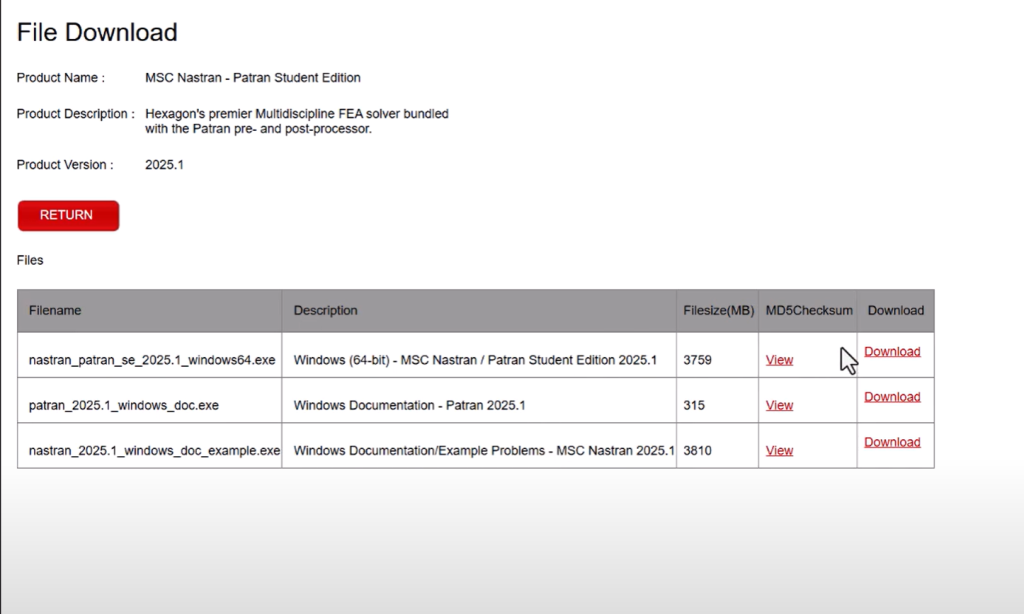
On the student edition portal, scroll down until you see “MSC Nastran/Patran Student Edition.” This package includes both solvers and the pre/post-processing interface. Click “Download,” and the system will give you two items: the main installation file and the documentation package. The main software download is the one you need. It is large, so the download may take several minutes depending on your internet speed. MSC Patran Nastran 2025 Installation
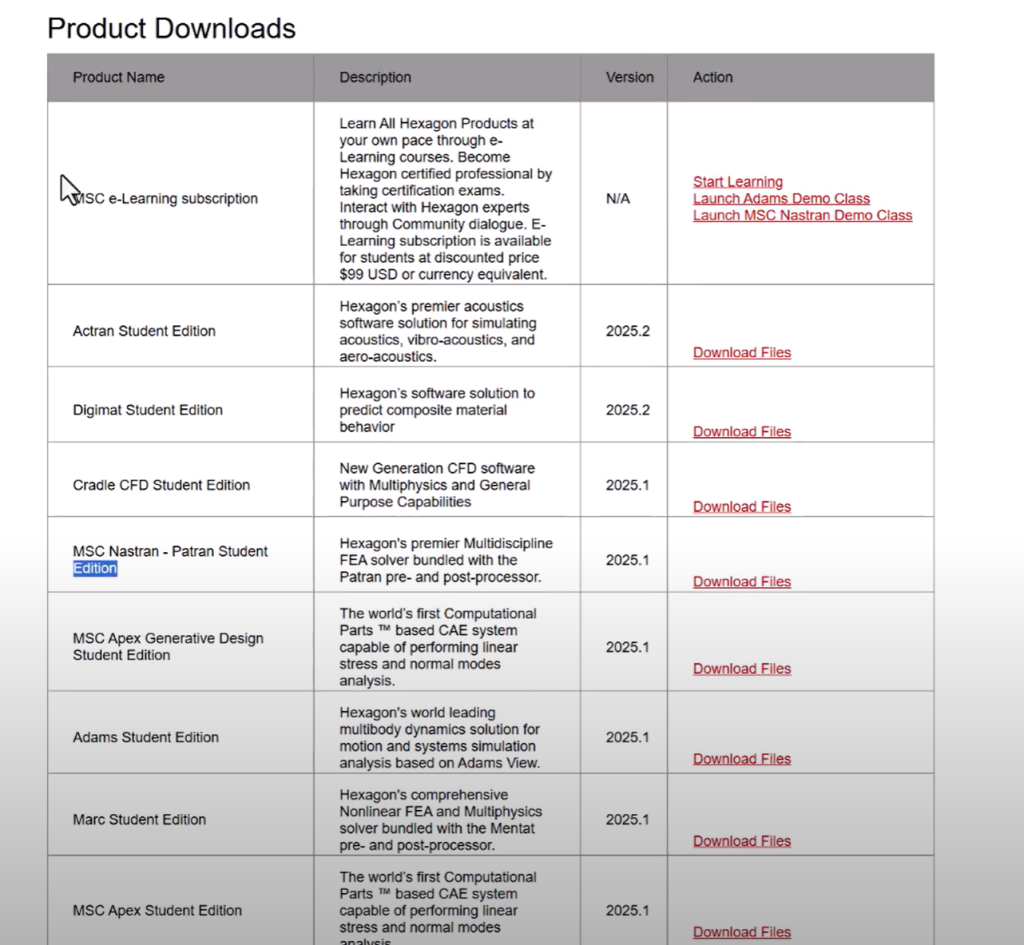
When the download is complete, locate the installer file in your Downloads folder. Right-click on it and choose “Run as Administrator” to avoid permission issues. MSC Patran Nastran 2025 Installation
Installing MSC Patran/Nastran 2025
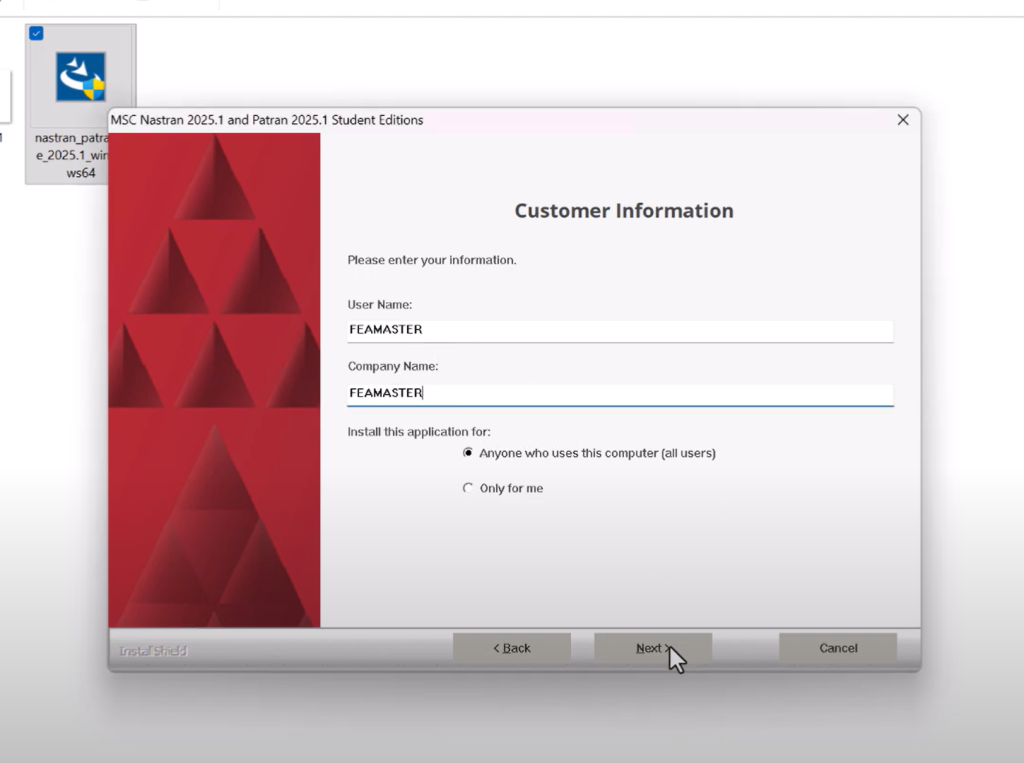
Once the installer opens, accept the license agreement and move forward. The installer will ask for your username and organization name. Enter your details and continue. You can use the default file installation directory unless you have a dedicated SSD location you prefer.
Select “Complete Installation,” which installs all components including the solver, the graphical interface, libraries, and documentation links. Continue clicking Next until the installation begins. This process may take several minutes depending on your hardware. On an Intel Core i9 machine, installation typically completes in around fifteen minutes. MSC Patran Nastran 2025 Installation
During installation, a prompt will appear asking for the scratch directory. Unless you have specific preferences, you can accept the default location. This directory is used during the solving process for temporary files. MSC Patran Nastran 2025 Installation
Toward the end of the installation, you will be asked whether you want to create desktop shortcuts. Choose “Yes” so you can quickly access MSC Patran from your desktop. MSC Patran Nastran 2025 Installation
Launching MSC Patran for the First Time
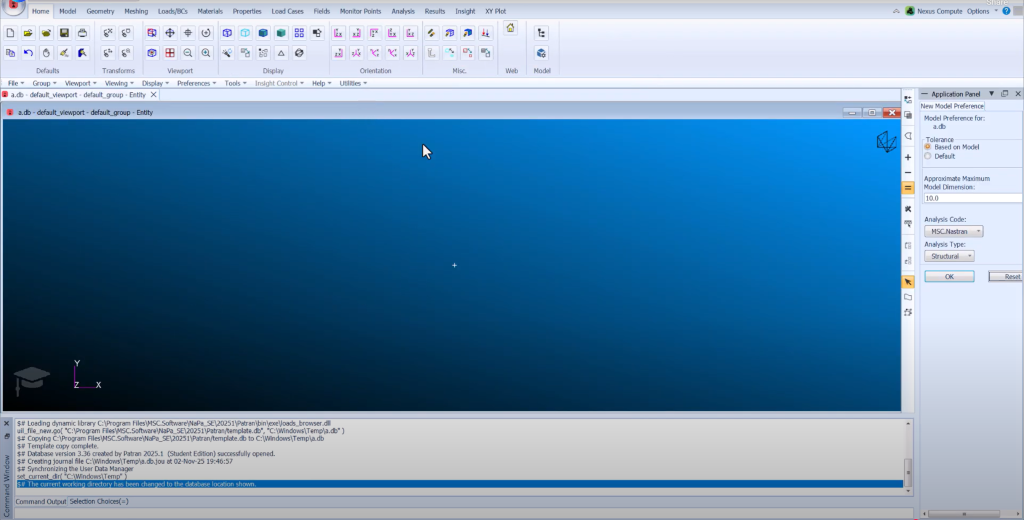
After installation, locate the “MSC Patran Student Edition” icon on your desktop and open it. The software may display a startup message about legacy database support. You can disable this message so it doesn’t appear every time you launch the program.
Once the window opens, you’ll see the full graphical environment. The left panel includes model creation, geometry tools, meshing options, material assignments, properties, loads, boundary conditions, analysis settings, and visualization features. The student version includes almost everything you need to perform structural or thermal analysis workflows.
The only disabled features are those reserved for commercial licenses, such as direct integration with some advanced modules. But for most academic purposes, the student version has all essential tools. MSC Patran Nastran 2025 Installation
Verifying Your Installation
To make sure everything installed correctly, try creating a new database file from the Patran interface. You should be able to browse geometry, open meshing tools, import models, and access the analysis configuration. Checking the XY plot feature ensures that results visualization is working as expected.
You can also verify that Nastran is correctly linked by running a small test model. Patran will automatically launch the embedded Nastran solver when generating an analysis run.
Final Thoughts
That’s the complete process for performing a successful MSC Patran Nastran 2025 installation using the official Hexagon Student Edition. Once you’ve installed the software, you can begin running structural models, exploring finite element workflows, or preparing for more advanced tasks like composites, optimization, and nonlinear analysis.
If you want to continue building your simulation tools, you can also download and install Abaqus. I’ve prepared a full installation video for Abaqus as well, and you can find it on-screen or in the links below.
You’re all set — enjoy your simulation journey.
Are you interested in ANSYS 2025? Learn how to download it from here:
https://feamaster.com/ansys-student-2025-installation-guide/
